Cloud-Based vs Browser-Based LinkedIn Automation: Which Fits Your Team?
Compare cloud-based vs browser-based LinkedIn automation, including features, costs, security and team needs, to choose the right approach for your sales team.

On this page
Choosing between cloud-based vs browser-based LinkedIn automation can make a real difference to how your sales team manages prospecting and follow-ups. Both approaches can help organise LinkedIn outreach, but they work differently and suit different business needs. Before choosing a tool, it is worth comparing their features, costs, security considerations and day-to-day requirements to find the right fit for your team.
That’s why a lot of B2B teams look at LinkedIn automation tools. But picking one isn’t just about message limits or what’s on the pricing page. How the tool runs matters just as much.
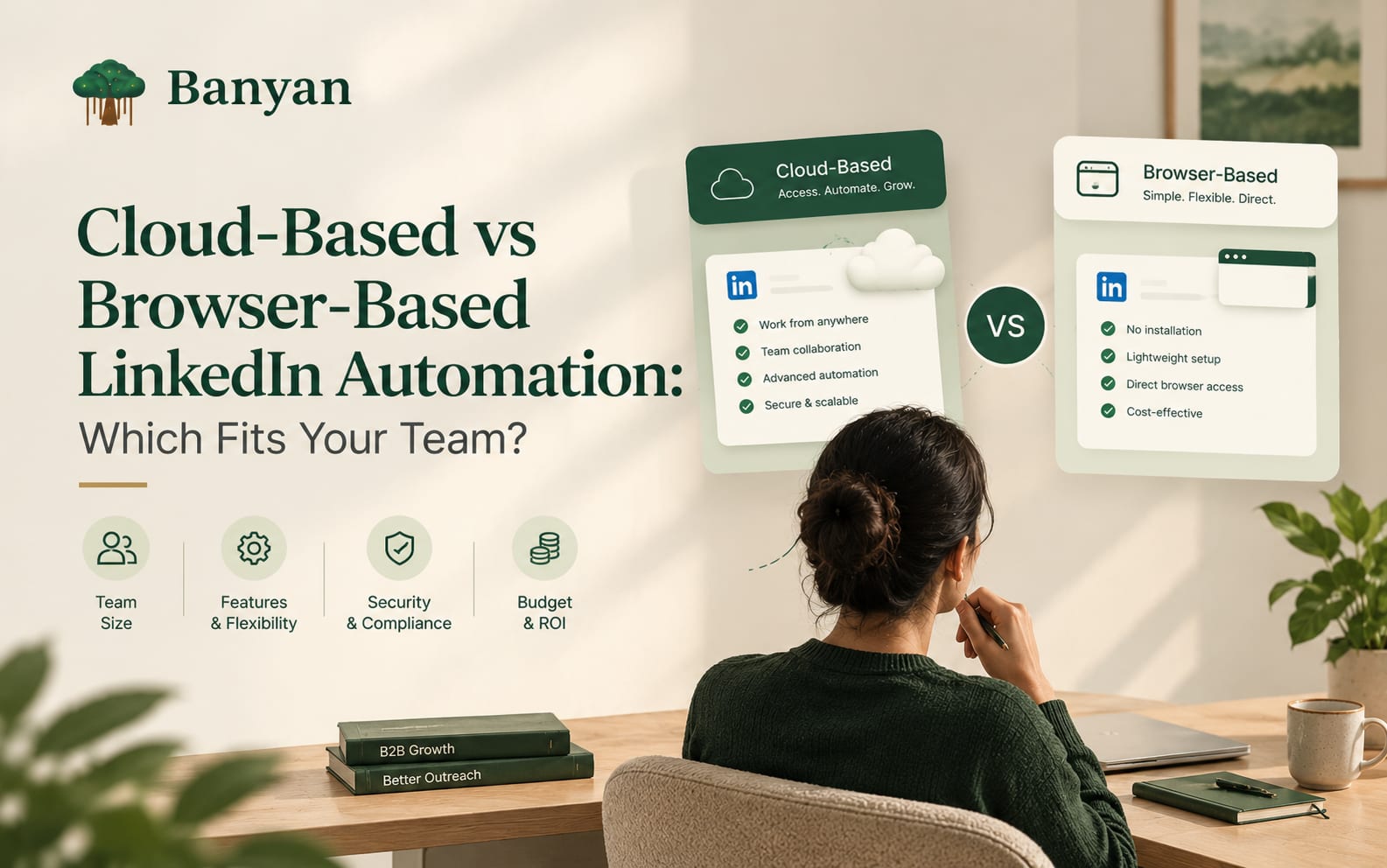
The two common setups are cloud-based and browser-based LinkedIn automation. Both can take work off your team’s plate. They differ in where they run, how people access them and how much babysitting they need.
The short answer: cloud-based tools tend to suit teams that want shared dashboards and workflows that don’t depend on one person’s computer. Browser-based tools tend to suit individuals who do hands-on research inside LinkedIn all day. But the right pick depends on your team size, budget, security needs and the actual product, not the label.
Below, we compare both approaches, go through the pros and cons, and give you a checklist to choose with.
What Is LinkedIn Automation?
LinkedIn automation tools handle the repetitive parts of outreach: organising prospects, drafting personalised messages, scheduling follow-ups and tracking activity. For B2B teams, the goal is simple: less admin and more consistent prospecting.
What automation doesn’t do is replace knowing your audience. A badly targeted message is still a bad message, whether you typed it yourself or a tool sent it.
One more thing before we go further. LinkedIn restricts certain automated activity and unauthorised third-party tools, and no tool can promise your account will never face restrictions. Read LinkedIn’s current rules before you choose any approach.
What Is Cloud-Based LinkedIn Automation?
Cloud-based LinkedIn automation runs through an online service instead of depending on one person’s browser staying open on their laptop.
You usually log in to a web dashboard, set up campaigns there and manage them from there. With the right tool, scheduled tasks can keep moving while you’re away from your desk. Picture a rep who sets up a campaign in the afternoon and doesn’t have to leave a browser tab open overnight for it to progress.
How much runs on its own depends entirely on the product. “Cloud-based” doesn’t mean everything runs independently, and it doesn’t guarantee uninterrupted service.
What You Typically Get
- A web dashboard. Managers can check campaign activity without sitting at the same computer as their reps.
- Scheduled workflows. You set tasks up in advance. Scheduling options vary a lot between providers.
- Team-level visibility. Some tools show campaign progress, prospect lists and activity reports in one place.
- Less reliance on a local browser session. Fewer things break because someone closed a laptop. It doesn’t remove every technical limit, though.
Advantages of Cloud-Based LinkedIn Automation
- Easy access from anywhere through an online dashboard
- Handy for distributed teams reviewing shared workflows
- Easier to supervise ongoing campaigns with scheduling and central reporting
- Less dependence on one computer
- Can scale to more users or campaigns, depending on the plan
Limitations of Cloud-Based LinkedIn Automation
- Recurring costs. Monthly or annual fees add up, and extra users or features can raise the price.
- Provider dependence. Outages, bugs or product changes can disrupt your workflows.
- Security questions. You need to look closely at how the provider handles account access and data.
- Feature gaps. Some platforms don’t support every workflow or integration you need.
- Compliance doesn’t change. Running a workflow in the cloud doesn’t make a prohibited activity acceptable.
Don’t assume cloud infrastructure makes a tool safer or more reliable. Judge the provider, not the label.
What Is Browser-Based LinkedIn Automation?
Browser-based LinkedIn automation works through your browser. That might be a browser extension, a locally installed tool, or software that needs an active browser session.
A typical example: a rep opens a prospect’s LinkedIn profile and uses an extension to save details or prepare the next outreach step.
Not every browser-based tool works the same way. Some mainly help with capturing information and organising your workflow. Others try to automate actions through the browser. That difference matters a lot for both functionality and compliance, so check which type you’re looking at.
What You Typically Get
- A fit with your research flow. Reps work in LinkedIn and the tool in the same browser.
- Quick access to supporting features. You don’t have to jump between apps.
- A familiar setup. It sits close to the platform your team already uses.
- Browser or device dependence. Some tools need the browser open, you logged in or the computer awake. Others work differently, so check before you buy.
Advantages of Browser-Based LinkedIn Automation
- Fits naturally into hands-on prospect research
- Can be quick to start, since lightweight tools need less setup than a full sales platform
- Often a good match for freelancers and small teams with simple needs
- Works well for people who review profiles and conversations personally
- May cost less upfront, though pricing and limits vary a lot
Limitations of Browser-Based LinkedIn Automation
- Session dependence. Some tools stop when the browser closes or the computer goes to sleep.
- Device-by-device setup. Each person may need to configure the tool on their own computer.
- More supervision. Some workflows need someone to watch activity or restart tasks.
- Harder team management. A pile of individual extensions is tougher to oversee than one platform with central admin.
- Permission risks. Browser extensions can ask for access to sensitive browsing data. Read the permissions carefully before you install anything.
Cloud-Based vs Browser-Based LinkedIn Automation: Key Differences
The real difference isn’t where the software lives. It’s how the tool runs, how people use it and how much management it needs.
| Factor | Cloud-based automation | Browser-based automation |
|---|---|---|
| Where it runs | Provider’s online infrastructure | Your browser, an extension or a local setup |
| How you access it | Usually a web dashboard | Usually a supported browser |
| Needs your computer on? | Some workflows can run without it | Some tools need an active browser or device |
| Scheduling | Often available, depending on the product | Varies by tool |
| Team management | May offer central controls and reporting | Often more individual-focused unless the tool adds team features |
| Setup | Connect your account and configure campaigns | Install an extension and approve browser permissions |
| Maintenance | Provider manages most of the infrastructure | You may need to maintain the browser, extension or device |
| Pricing | Often subscription-based, sometimes with user or usage limits | Ranges from low-cost plans to advanced tiers |
| Best fit | Teams that need centralised workflows | Individuals or teams that prefer browser-centred work |
| Main security checks | Provider access, stored data, account permissions | Extension permissions, local access, account handling |
These are general patterns, not rules. Some browser-based tools have strong team features, and some cloud-based products have thin reporting. Compare real product capabilities rather than the category name.
Which Approach Fits Your Team Size?
The right choice depends on how your team actually works. A tool that suits one salesperson can be impractical for a department running several campaigns with reporting requirements.
Freelancers and Individual Sales Professionals
You’re probably doing your own research, writing your own messages and managing your own conversations. A browser-based tool can work well if it supports that without extra complexity, for example by helping you organise prospect details while you stay hands-on. A cloud-based tool may suit you better if you want scheduled workflows or access across devices.
Prioritise: ease of use, clear pricing, useful research features, minimal setup and transparent permissions.
Small B2B Sales Teams
Small teams need a balance of simplicity and coordination. Reps often share an audience but run their own lists and conversations. Cloud-based tools help when managers want to see campaign progress and keep workflows consistent. Browser-based tools can also work if the team prefers individual prospecting and the product has adequate management features. Ask whether the tool matches how your team really shares work.
Prioritise: shared visibility, consistent messaging, clear ownership of prospects, easy onboarding, reliable reporting and access controls.
Growing Sales Teams
As a team grows, tracking prospects and follow-ups gets messy. Managers need to know what’s being done, where prospects sit in the process and whether everyone follows consistent practices. A cloud-based platform with proper team features is often a practical fit, especially for remote teams. But going cloud isn’t enough on its own. Look at CRM integration, reporting, permissions and user management too.
Prioritise: central campaign visibility, CRM compatibility, team permissions, activity tracking, scalable pricing and clear account-security practices.
Agencies Managing Multiple Clients
Agencies handle different audiences, campaign plans and reporting for each client, and they have to keep client data separate. A cloud-based system can help if it supports account separation, role-based access and consolidated reporting. Don’t assume those features exist just because a product is cloud-based. Browser-based tools can still work for research-heavy tasks, but check how easily you can maintain the setup across staff and client projects.
Prioritise: separate client workspaces, user and permission management, campaign reporting, clear account ownership, data protection and transparent usage limits.
Which Is More Cost-Effective?
Look at price alongside the time it takes to run the tool. A cheap subscription isn’t cheap if reps keep stepping in by hand, and a pricier platform isn’t worth it if a small team will never use half of it.
Compare plans on these points:
- Subscription and usage costs. Check the monthly or annual fee, users included, campaign limits and add-on charges. Make sure the plan covers the features you actually need.
- Setup and training. A simple tool is easy to adopt. A bigger platform takes more time to set up and teach, so estimate that effort.
- Time spent managing workflows. Think about how many hours your reps spend preparing campaigns, monitoring tasks and updating records. A good tool cuts unnecessary work without hurting the quality of your outreach.
- Integration costs. If you rely on a CRM, check whether the integration is included or needs an extra subscription or technical setup.
- The cost of poor outreach. Automation can’t fix irrelevant targeting or generic messages. If a tool nudges you toward high-volume outreach with little personalisation, you’ll get weaker conversations and wasted time.
The most cost-effective tool is the one that fits your real process at a reasonable total cost, not the one with the lowest advertised price.
Security and LinkedIn Compliance: What to Check
Account security deserves as much attention as features and pricing. Both cloud-based and browser-based tools carry risks, depending on how they access accounts, handle data and automate activity. Neither approach is safer just because of its technical setup.
Before you commit, ask these five questions:
- What permissions does the tool need? Find out what account, browser or data access it requests. Be wary of broad permissions that aren’t clearly explained or necessary for what the product does.
- How does the provider handle your data? Check what’s stored, how it’s protected, who can see it and how long it’s kept. If the tool processes prospect or customer data, make sure its practices meet your organisation’s requirements.
- Does the workflow follow LinkedIn’s rules? Read LinkedIn’s current terms. Unauthorised automation, scraping or activity designed to dodge platform controls can put your account at risk. A provider saying its tool is “safe” doesn’t guarantee compliance or protection from restrictions.
- Can you control activity levels? Look for clear controls to pause or stop workflows. Don’t assume default settings suit every account.
- Is support available when things break? Know how the provider handles technical problems, account-access issues and security concerns. Good documentation and responsive support matter when a workflow stops working.
A sensible rule: choose a tool that supports responsible, relevant outreach and gives your team clear control over its activity.
Features to Compare Before You Buy
Cloud versus browser is only part of the decision. The features decide whether a tool fits your sales process. Use this checklist:
- Prospect research and targeting. Does it help you organise prospect information and keep records accurate?
- Personalisation. Can you tailor messages to a prospect’s role, company or business context? Automation should make personalisation easier, not turn every message into the same template.
- Follow-up management. Does it support scheduling, tracking and managing follow-ups the way your team works?
- CRM integration. How does it work with your CRM? Can contact records, notes and activity be managed without duplicating effort?
- Reporting and visibility. Can you see how the workflow is performing? Don’t judge it by how many requests or messages went out. Relevant replies, real conversations and qualified opportunities say far more about business value.
- Team controls. If several reps will use it, check for user permissions, account management and shared reporting.
- Ease of use. A feature-heavy platform is a poor choice if your reps struggle with it or need constant help.
Common Mistakes When Choosing LinkedIn Automation
Even a well-built tool disappoints when a team picks it for the wrong reasons. Watch out for these:
- Choosing on price alone. The cheapest option may lack the features, controls or support you need.
- Assuming cloud-based means risk-free. Cloud infrastructure doesn’t guarantee compliance, account security or uptime.
- Ignoring browser permissions. Extensions can request access to browsing information, so check before you install.
- Putting volume ahead of relevance. More messages don’t automatically mean more qualified opportunities. Targeting and personalisation still matter.
- Overlooking CRM needs. A tool that doesn’t fit your existing sales process creates more admin, not less.
- Skipping the test. Before signing a long subscription, review setup, usability, reporting and support. Use any trial responsibly and within platform rules.
How to Choose the Right Approach for Your Team
Answer these five questions before you decide:
- How many people will use the tool? One person may only need a simple setup. A larger team will likely want central administration.
- Do workflows need to run when your computer is off? If yes, confirm the product genuinely supports that.
- How much do CRM integration and reporting matter? For many teams, they matter more than the technical approach.
- How much oversight does your team need? Shared visibility, permissions and activity controls become more important as the team grows.
- What are your security and compliance requirements? Review account access, data handling and how the tool approaches LinkedIn’s rules.
Then compare two or three tools against the same checklist. It’s the easiest way to spot real differences instead of getting swayed by marketing claims.
Where Does OutPilot Fit Into This Decision?
If you’re evaluating LinkedIn outreach tools, OutPilot by GetBanyan is one worth assessing against your workflow. Its product information describes cloud-based execution alongside multi-step campaigns, prospect-list management, a unified inbox and campaign analytics.
Don’t pick any tool just because it’s cloud-based or browser-based. Check whether its actual capabilities match what your team needs: outreach workflow, prospecting requirements, controls, integrations and pricing. Verify the current feature set and operating model before you decide, and don’t assume every capability discussed in this article is available in OutPilot.
The question that matters is whether the product helps your team run outreach more consistently while keeping communication relevant and account practices responsible.
Final Verdict: Cloud-Based or Browser-Based LinkedIn Automation?
No single approach suits every B2B sales team.
Cloud-based LinkedIn automation may be the better fit if you value central management, shared visibility and workflows that don’t always depend on one computer being on, as long as the product you choose actually offers those things.
Browser-based LinkedIn automation may be the better fit for individuals and teams who prefer to work directly in their browser and want a tool that supports their existing prospect research.
For growing teams, the decision goes beyond convenience. Look hard at reporting, integrations, access controls, pricing, support and compliance before you commit.
Above all, automation should lead to better sales conversations, not just more activity. Clear targeting, relevant messages and thoughtful follow-ups still matter, however the software runs. Choose the approach that fits how your team works today, can handle where it’s heading, and gives you real control over how outreach is managed.
Frequently asked